You are inside an elevator in a newly opened shopping mall and press the button for the third floor. Nothing happens. You try it multiple times, but the elevator just won’t start.
Finally, the security guard walks over and says that the buttons are decorative. The elevator is voice-operated, and you have to instruct, “ Take me to the third floor.”
Ridiculous, right?
Many users go through something similar on websites when the website owners sacrifice accessibility for aesthetics. Therefore, just like how you were informed about the voice activated elevator, your website also needs something similar.
This is where ARIA (Accessible Rich Internet Applications) comes in. In this blog, we will help you get a clear idea about the implementation of ARIA (without compromising accessibility) on your website.
Table of Contents
Following The First Rule of ARIA
But.. what is ARIA?
ARIA is a set of HTML roles and attributes that help make websites more accessible for people with disabilities. It gives browsers and assistive technologies extra information about how elements function and how users can interact with them, especially in dynamic or custom interfaces.
Think of ARIA as a way to give extra information about a webpage’s elements. It helps browsers, developers, and assistive technologies understand what an element does and how users can interact with it. Through roles, states, and properties, ARIA makes dynamic content and custom interface components more accessible.
The most important thing you need to know about ARIA is its first rule, coined by the W3C (the folks who write the web standards):
“If you can use a native HTML element or attribute with the semantics and behavior you require already built in… do so.”
Think of HTML as the standard equipment in a car. Use modification only where it is necessary. Otherwise, you may end up confusing users or ruin their experience on your website. Additionally, it is harder to maintain it.
Real-Life Example: The Fake Button
A retail client built their entire Add to Cart functionality using <div> tags because they wanted complete control over the styling.
The Bad Code (The Sticker):
html
<div class="fancy-btn" onclick="addToCart()">
  Add to Cart
</div>
To a sighted user, this is a button. To a screen reader, this is just a container. It says nothing. A blind user tabbing through the page will skip right past it because <div> elements aren’t interactive by default.
The Good Code (The Steering Wheel):
html
<button class="fancy-btn" onclick="addToCart()">
  Add to Cart
</button>
By using the native <button> tag, the browser automatically tells the screen reader: “This is a button. You can click it.” No ARIA required.
Respecting the Holy Trinity (Roles, States, and Properties)
To use ARIA correctly, you need to understand its three core components. Think of them like introducing a new employee at your office.
1. Role: What is your job title?
ARIA roles are HTML attributes that help assistive technologies understand the purpose of page elements. They define interactive components, organize content, and identify key page regions such as navigation and main content.
ARIA roles fall into four main categories:
- Abstract roles: Serve as the foundation for other roles.
- Widget roles: Define interactive elements like buttons, tabs, and text boxes.
- Document structure roles: Organize content such as articles, lists, and toolbars.
- Landmark roles: Identify key page regions like navigation, forms, and main content.
Because each role serves a specific purpose, using the correct one is essential for maintaining accessibility and a good user experience.
Role tells the user what the element is. If you label a <div> with role="button", you are promising the user that this element will act exactly like a button (it can be focused, clicked with ‘Enter’ or ‘Space’, etc.).
Code:
html
<div role="alert">
  Your changes have been saved successfully.
</div>
Here, role=”alert” tells the browser that it isn’t just text; it’s an important message. Drop everything and inform the user immediately.”
2. State: What are you doing right now?
ARIA states and properties work alongside roles to provide more context about how page elements behave and interact. States can change based on user actions, while properties usually remain the same.
State tells the user the current condition of the element and can change based on user actions or dynamic updates. For example, is the checkbox checked? or is the menu open? etc.
Code:
html
<button aria-pressed="true">
  Mute Audio
</button>
If you change the visual color of the button from grey to green when clicked, you must also update aria-pressed from false to true. Otherwise, a blind user will only hear the Mute Audio button, and nothing happens when he clicks it. They have no idea if it worked.
3. Property: What are your details?
ARIA properties provide additional information about an element that standard HTML cannot convey. Property gives extra context or relationships. For example, what is this field describing? Or which popup does this button control? etc.
Code:
html
<button aria-controls="main-menu" aria-expanded="false">
  Menu
</button>

<ul id="main-menu" hidden>
  <li>Home</li>
  <li>About</li>
</ul>
Here, aria-controls links the button to the menu (the property), and aria-expanded tells us the menu is currently closed (the state).
Together, states and properties can define interactive elements, communicate updates in dynamic content, support drag-and-drop functionality, and clarify relationships between elements when HTML alone cannot.
Implementing ARIA in the Real World
Let’s move away from theory and look at three popular scenarios that developers struggle with constantly.
Scenario 1: The Link Trap
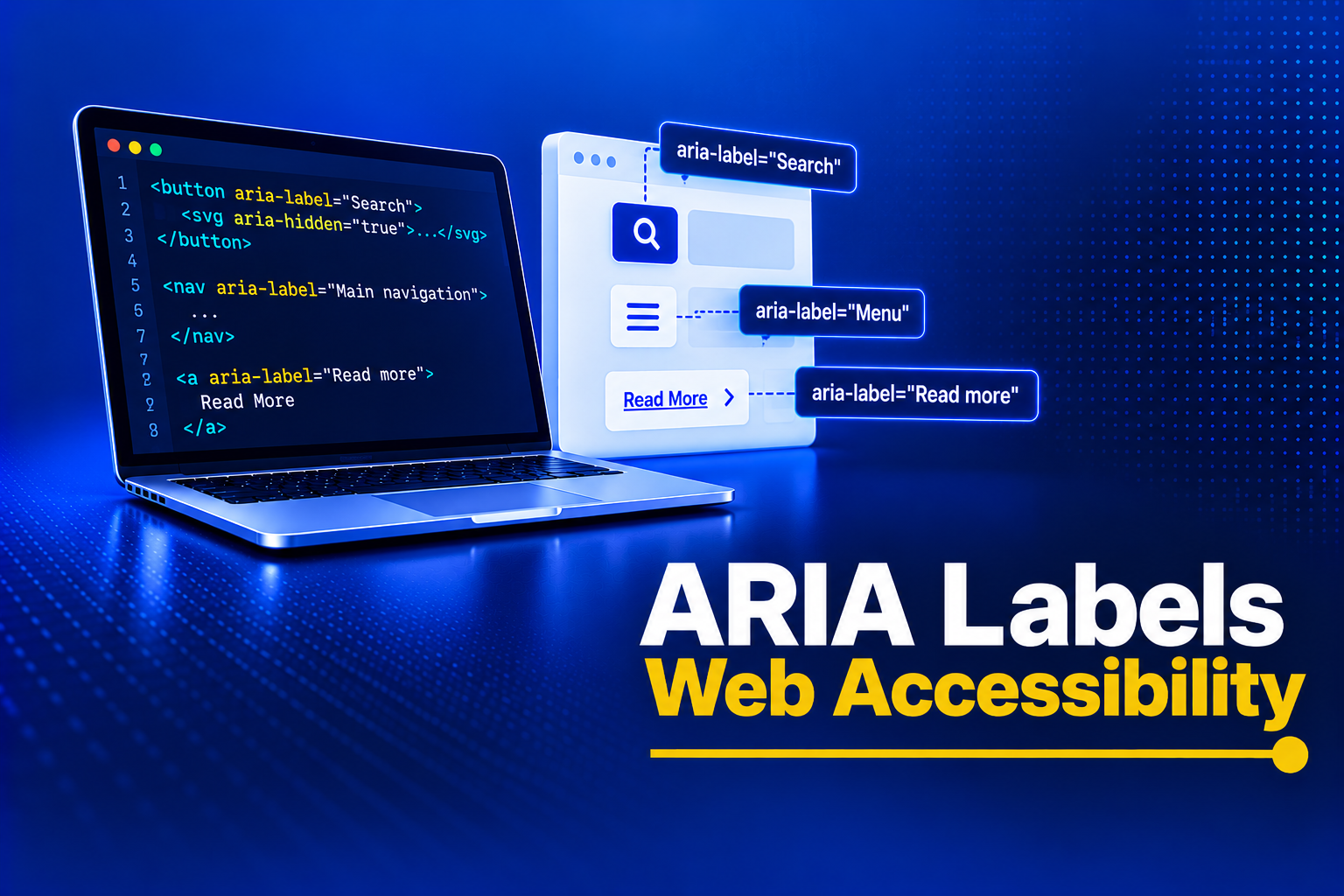
You have a blog index page. Every article has a link that says, “Read More”. It might not seem like a big problem; however, screen reader users experience the complete opposite. For them, the screen will just repeat, “Read More” multiple times like it’s glitching (since screen reader users often navigate by pulling up the list of all links on the page)
The Fix: aria-label
You can use aria-label to give the screen reader a different text than what is shown visually. For example, there are three different links on the website related to sleeping, but the text for all the links read: Read More.
Here is how you can fix it:
<article>
  <h2>10 Tips for Better Sleep</h2>
  <p>Sleep is vital for health...</p>
  <a href="/sleep-tips" aria-label="Read more about 10 Tips for Better Sleep">
    Read More
  </a>
</article>
This small change maintains the visual design but informs the screen reader users who will understand the context and choose to open the link they desire.
Scenario 2: The Mystery Form Field
The checkout page where the “Billing Address” checkbox has no label. It is just a box next to the text “Same as shipping.”
Visually, the text might make people understand it through context. However, since it was not linked with the code, the screen reader will just announce to the user that the checkbox is unchecked without giving them any context.
The Fix: aria-labelledby
When you have a text element visible on the screen that acts as a label, connect it
html
<h3 id="billing-title">Billing Address</h3>
<input type="checkbox" id="same-shipping" aria-labelledby="billing-title label-text">
<span id="label-text">Same as shipping</span>
Using aria-labelledby, you can point to multiple IDs. In this case, the screen reader might announce, “Billing Address, Same as shipping, checkbox, unchecked.” Context delivered.
Scenario 3: The Accordion
Accordions, the expand/collapse sections (often used for FAQs), are the nemesis of bad accessibility. Bad implementation usually involves a that slides down when clicked.
To make it accessible, you need to communicate three things:
- This is a button that controls something else.
- The content is currently hidden or shown.
- The content is connected to this specific button.
Remember…
Note that ARIA works best when it supports HTML, not replaces it. Always use native HTML elements and attributes whenever possible, since they already provide built-in accessibility features. Avoid changing the default meaning of HTML elements with ARIA unless absolutely necessary, as this can remove valuable information for screen reader users. If you create interactive ARIA controls, make sure they are fully keyboard accessible and follow standard keyboard patterns. Finally, all focusable and interactive elements must have the correct semantics and remain visible to users, including those navigating with a keyboard or assistive technologies.
Conclusion
ARIA is not a shortcut to accessibility. It is a tool that helps fill the gaps when HTML alone cannot provide the information users need. When used thoughtfully, ARIA can make complex interfaces understandable and usable for people who rely on screen readers and other assistive technologies. But when used incorrectly, it can create more barriers than it removes.
Implementing ARIA correctly isn’t about checking boxes on a WCAG compliance sheet so you don’t get sued. It’s about ensuring that when a customer walks into your digital store, they aren’t met with fake elevator buttons and invisible signs.
It’s about respecting the user’s time and dignity.
Start small. Look at your navigation menu today. Does it use aria-expanded? Look at your icons. Do they have aria-label? Fix those, and you’ve already made the web a better place than it was yesterday. Reach out to us at AEL Data today to understand further.