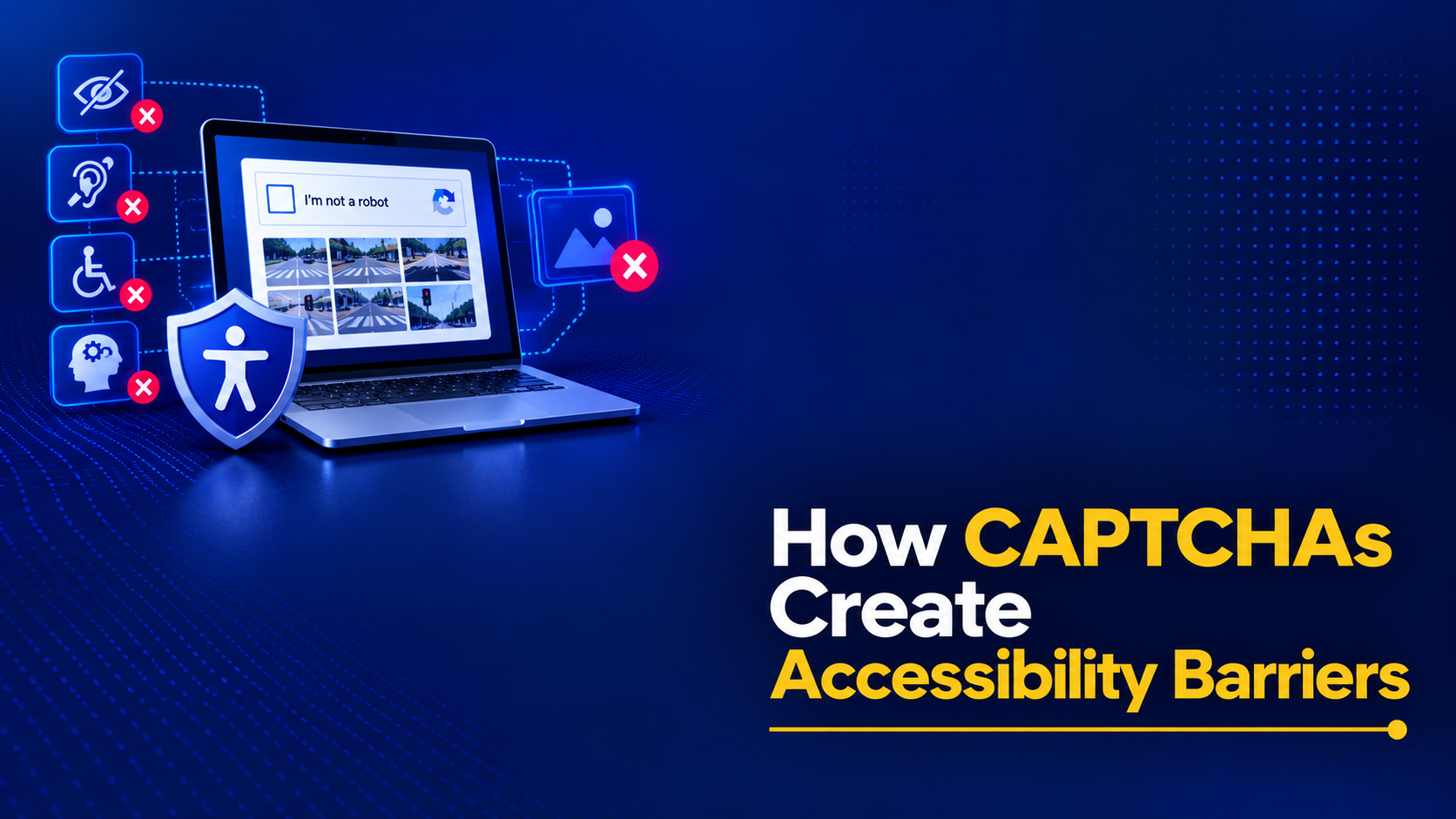
We originally built CAPTCHAs to weed out bots. But in the real world? They mostly just lock out users with disabilities. A single wonky image or garbled audio clip can completely stop someone from buying a product, applying for a job, or accessing critical services. And it’s not because they’re a bot; it’s because the test simply wasn’t designed for them.
Let’s break down how traditional CAPTCHAs put up walls for different types of disabilities and see exactly how those barriers map to WCAG criteria. We will also share some actual audit findings and walk you through a few accessible alternatives so you can keep your site secure without shutting people out.
Table of Contents
Where CAPTCHAs Fail: Breakdown by Disability?
CAPTCHAs help protect websites by verifying that a user is human, but they can also create significant barriers for people with disabilities across a wide range of accessibility needs. Let’s delve further:
Visual Disabilities
The Reality: Wavy text, blurry pictures, and those infuriating “click the crosswalk” grids are practically impossible for blind users, folks with low vision, or anyone who is colorblind. Plus, screen readers can’t parse text that’s baked into an image.
The Audio Illusion: You’d think audio fallbacks would fix this. They don’t. To trick the bots, developers distort the audio so heavily with static and overlapping voices that it becomes total gibberish for the exact people trying to use it.
WCAG Red Flags: This trips up 1.1.1 (Non-text Content), 1.4.3 (Contrast Minimum), and 1.4.1 (Use of Color).
Cognitive Disabilities
The Reality: CAPTCHAs force you to process confusing information fast. Trying to decipher twisted letters or figure out if a tiny sliver of a scooter counts as a “motorcycle” is exhausting. For users with dyslexia, ADHD, or memory impairments, these tasks are disproportionately tough. Slapping a timer on it just makes it worse.
WCAG Red Flags: Violates 3.3.2 (Labels or Instructions) and 2.2.1 (Timing Adjustable). More importantly, WCAG 2.2 explicitly bans cognitive tests (like puzzles or math) as your sole authentication method under 3.3.7 (Accessible Authentication).
Hearing Disabilities
The Reality: If an audio CAPTCHA is the only option, deaf or hard-of-hearing users are entirely out of luck. And while visual tests often have an audio fallback, you almost never see a text fallback for an audio challenge. Think about deaf-blind users for a second: they face a double wall. Standard setups fail them on both fronts.
WCAG Red Flags: Fails 1.2.1 (Audio-only and Video-only) and 1.1.1 (Non-text Content).
Motor Disabilities
The Reality: Traditional CAPTCHAs assume you’re using a mouse with perfect precision. That’s a massive hurdle for users with Parkinson’s, tremors, or paralysis, or those who rely on keyboards, switch devices, or voice input. Even a simple “I’m not a robot” checkbox is ridiculously hard to hit if you lack fine motor control. Add a timed image grid, and it’s a lost cause.
WCAG Red Flags: Breaks 2.1.1 (Keyboard), 2.5.3 (Label in Name), and 2.2.1 (Timing Adjustable). In fact, lots of these widgets trap keyboard focus entirely.
Advanced CAPTCHA features
Some CAPTCHA systems analyse your IP address or browsing behaviour to decide whether you’re human. But these systems can mistakenly flag people who use assistive technologies, because their navigation patterns often differ from what’s considered “typical” user behaviour.
What We Actually See in Audits?
When accessibility auditors dig into this stuff, the same failures pop up everywhere.
Here’s what we usually find out in the wild:
- Useless audio fallbacks (1.1.1): An e-commerce site playing three overlapping voice tracks at once, making it completely unusable for screen reader users.
- Keyboard traps (2.1.2): A healthcare portal where the CAPTCHA iframe grabbed the keyboard focus and wouldn’t let go, stranding the user on the page.
- Invisible CAPTCHAs lacking fallbacks (1.1.1, 3.3.7): Government sites relying on invisible reCAPTCHA, but when the fallback image grid eventually triggered, it had zero accessible alternatives.
- Session timeouts (2.2.1): A financial app where a user with a motor impairment spent minutes trying to solve the puzzle, only for the session to expire. That triggered a new CAPTCHA, trapping them in an endless loop.
- Ignoring WCAG 2.2 (3.3.7): Puzzles are now strictly flagged as non-conformant if there isn’t another way to authenticate. Period.
Under WCAG 2.2, accessible authentication is a compliance requirement, not just a usability improvement.
Doing It Better: Accessible Alternatives
The most accessible CAPTCHA is often the one users never have to solve. So, how do we fix this? Here are the methods that actually work without locking people out.
One-Time Passcodes (OTP)
How it works: You text or email the user a single-use code, and they type it into a standard text box.
Why it’s better: Text fields are natively accessible. Screen readers, keyboards, and voice dictation software handle them beautifully: no visual puzzles, no audio decoding, and no frantic time limits.
The Catch: Users need their phone or email handy, and delayed messages cause friction. Make sure you include a clear “resend code” option and explain when it expires.
Honeypots
How it works: Hiding an invisible form field on the page.
Why it’s better: This is completely invisible to humans and doesn’t create any extra friction forreal users. If the form field is filled, you can automatically conclude it is filled by bots and reject it.
The main limitation with this type of solution is that there are obviously intelligent bot(s) out there that will figure this out. This solution is NOT a solution to be used as a standalone method of bot detection and is better used as part of a layered strategy to combat abuse on your website.
Behavior-Based Detection
How it works: Background scripts watching a user’s behavior on a web page and comparing it to past human behavior on similar pages. Human behavior passes through while bot behavior is flagged.
This type of filter is better because it allows real humans to complete a form or transaction without any intervention, i.e., no check boxes or puzzles to complete for humans while bots are filtered out.
This type of detection collects more information about user behavior on your website, and you must disclose in your privacy policy how this information is used. This type of detection should always be used in conjunction with a fallback challenge that users can access if the behavior-based detection fails.
Cryptographic Proof-of-Work (PoW)
How it works: Small math functions in the browser’s background. While a single user is waiting a few seconds for a submit button to become active, the browser of a user computing proof-of-work in the background is already computing the next one. Thousands of forms to be filled out by a bot leads to a huge problem for the bot, while for every single human user the task completion is taking only a few seconds.
Why it’s better: Completely invisible to the users. They click submit, and they go to continue whatever they were doing on the site.
A very old mobile phone will take about a second longer to solve the PoW than a new mobile phone. But then again, a very highly motivated spammer, who makes his living by spamming thousands of webforms on the Internet, is also going to have a very large computing cluster to solve the PoW.
Accessible CAPTCHA Services (e.g., reCAPTCHA v3)
How it works: It watches in the background and assigns a risk score without the user doing anything.
Why it’s better: Most users never see a challenge.
The Catch: You have to tune the threshold perfectly. If you set it too high, legitimate users—especially those using assistive tech that creates “unusual” interaction patterns—will get flagged and hit with an inaccessible fallback test.
How to Choose (The Decision Framework)?
For the lowest user friction: Go with Honeypots, Behavior-Based Detection, or Proof-of-Work.
For highest security: OTP or Behavior-Based Detection.
The Recommended Approach: Layer your defenses. Run a honeypot alongside behavior-based detection or proof-of-work so most people never see a challenge. But when the system does get suspicious, use an OTP as your fallback. It’s secure, and it fully aligns with WCAG requirements.
The Bottom Line
CAPTCHAs were a sensible solution when the web first started tackling spam and bots.
Today? They’re irresponsible. We have mountains of evidence showing how they block users with visual, cognitive, hearing, and motor disabilities. Plus, under WCAG 2.2, using them as your sole authentication method is explicitly non-conformant.
We know much more about the barriers they create for people with visual, hearing, cognitive, and motor disabilities. And under WCAG 2.2, relying on a CAPTCHA as the only way to authenticate users is no longer compliant.
We have better options now that are mature and production-ready. Honeypots, behavioral detection, cryptographic proofs, and OTPs offer solid security without the exclusion.
Your compliance game plan:
- Step 1: Audit your current CAPTCHAs against the WCAG criteria outlined above.
- Step 2: Strip out any cognitive tests that violate SC 3.3.7.
- Step 3: Start layering accessible alternatives into your overall bot-detection strategy.
Security and accessibility aren’t competing priorities. If your system keeps the bots out but locks real people out in the process, it isn’t secure. It’s just broken. A system that keeps bots out while allowing everyone to access your website is simply a better, more secure design. Reach out to us at AEL Data to help you further.