When you are watching a video, the dialogues, sound effects, etc., are equally important as the visual information. However, there are still many videos that forget to accommodate people with auditory impairments. Inaccessible audio is a hidden barrier that is just as pervasive and just as damaging to the user experience.
Audio content has become a powerful force in the digital age, allowing creators to connect with audiences in more intimate and meaningful ways. Any media such as a podcast, youtube media, or even a simple notification ping should be accessible to everyone. In this blog, we will help you understand why audio accessibility matters and recommend ways to fix it so that you don’t exclude a massive segment of your audience.
Table of Contents
Five recommended solutions to make your Audio accessible
1. The Hidden Barriers
We assume that if a user is visiting a website, they are looking at a screen. We often forget that the web is a multimedia experience. For the 430 million people worldwide with hearing impairment, an uncaptioned video or a podcast without a transcript is essentially a “404 Not Found” error. It is content they cannot consume.
But audio accessibility isn’t just about deafness. It’s about situational limitations. Below are a few examples:
- The Commuter: A user on a crowded train who forgot their headphones and can’t play your audio.
- The Learner: A non-native speaker who can listen to the audio but needs text support to fully grasp the technical nuance.
- The Search Engine: Google is, for all intents and purposes, a deaf user. It cannot “listen” to your MP3 file to index your keywords. It can only read text.
2. Understanding the Standards
The Web Content Accessibility Guidelines (WCAG) is the bible of our industry, but they can be dry and technically dense. Let’s strip away the “Success Criteria 1.2.1” jargon and understand the intent behind the rules regarding audio.
The core principle here is Perceivability.
If information is presented through sound, there must be a way to perceive that same information through sight (text) or touch (braille). WCAG does not obsess over strict quality scores for captions or descriptions. Instead, it’s guided by four simple ideas known as POUR: Perceivable, Operable, Understandable, and Robust. We’ve already covered Perceivable, so here’s the rest:
- Operable means everyone should be able to use your content without struggling. Think easy play and pause controls, adjustable volume, and straightforward navigation.
- Understandable is about keeping things clear and well organized, so people can focus on the message instead of figuring out what’s going on.
- Robust means your content should work smoothly across different devices, platforms, and assistive tools, now and in the future.
WCAG 2.0 also follows a tiered system. To reach Level AA, you first need to meet all Level A requirements. Here’s a simple way to understand them:
- Level A covers captions for prerecorded audio and alternatives or audio descriptions when needed.
- Level AA adds captions for live audio and audio descriptions for prerecorded video.
- Level AAA takes it a step further with sign language interpretation and extended audio descriptions for videos without enough natural pauses.
The guidelines essentially ask you to provide an equivalent experience.
Note the word equivalent. A summary is not a transcript.
If the audio says: We are launching three new features: dark mode, offline sync, and team folders.
And your summary says: We discuss new features.
Result: That is not equivalent. The user relying on text has received less value than the user relying on audio.
3. Core Solutions
Various factors such as neurodiversity, physical abilities, education, and language must be considered to ensure inclusive audio communication.
Begin by analyzing your audience to identify barriers related to differences in ability, background, and context. This approach supports context-inclusive audio design, removes access barriers, and expands accessibility for everyone.
Here are some of the popular solutions:
Transcripts
For purely audio content (like podcasts or interview recordings). It is a text version of the audio content. There are two kinds of transcripts that are helpful to people with hearing impairments:
- Verbatim: Includes every “um,” “ah,” stutter, and false start. This is usually necessary for legal recordings or rigorous qualitative research. However, for marketing and educational content, the filler words and redundant are removed to improve experience. This cleaner version is known as intelligent verbatim.
- Edited: This form only focuses on capturing on the flow of the speech. Therefore, this form is grammatically correct, clear and concise readable document.
Captions
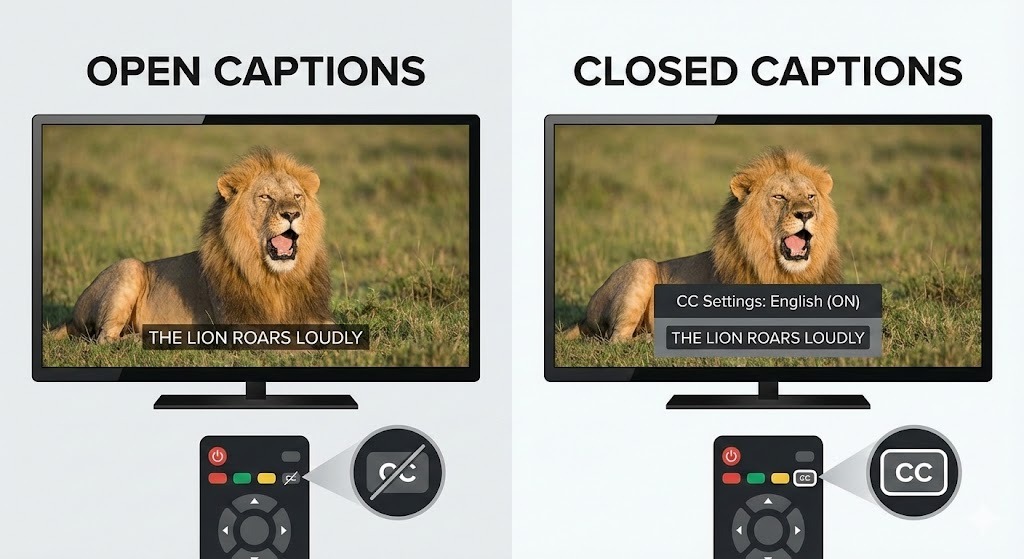
Captions are the text form of the video content that are time-synchronized. Captions also capture There are two types of captions:
Open Captions: These captions can’t be turned off by users. They are ideal for short clips.
Closed Captions (CC): These are the industry standard captions that not only can be turned off but also allows users to customize font size and language. In addition, they also benefit SEO.
Audio descriptions
If your website has videos embedded in them, understanding audio descriptions could be helpful. Audio descriptions help everyone understand what’s happening on screen, not just the dialogue.
By deciding what to describe, when to describe it, and how much detail to include, you can make your videos clearer, more inclusive, and easier for everyone to follow.
Here are a few tips for effective audio descriptions:
- Focus on visuals: Highlight what matters most. Name speakers, note entrances and exits, describe emotions and key actions, and include important background details.
- Keep it natural and well timed: Fit descriptions into natural pauses so they add to the video instead of interrupting it. Share the most important details first.
- Be clear and concise: Use present tense, simple and inclusive language, and avoid phrases like “we see.” Match the tone and pace of the video and skip unnecessary details.
Language
Accessible and inclusive communication focuses on clarity, structure, and ease of understanding. Simple practices will help you achieve that:
- Keep things simple and easy to follow.
- Use plain language, clear headings, bullet points, readable fonts, good color contrast, and clean layouts.
- Aim for a grade 6 to 7 reading level, and make sure your text and visuals reflect a diverse audience.
- Try not to rely on visuals or color alone to get your message across.
- Avoid vague links, low contrast text, tiny fonts, or long blocks of content that feel overwhelming.
- Go easy on italics, underlining, and all caps, and always make it clear where users can find help or support.
Sign Language Interpretation
This is the frontier of accessibility. For many people who have been deaf since birth, spoken languages (like English) are actually their second language. Their primary language is Sign Language (ASL, BSL, etc.).
While not always required by baseline compliance levels (like WCAG AA), providing a video inset of a sign language interpreter for your most critical audio content (like emergency health updates or major corporate announcements) is the ultimate sign of respect and inclusion.
Best Practices for UI Placement
When adding transcripts to your audio or video content, how you present them matters. Here are some simple ways to do that:
- Do not hide the transcript inside a PDF download link. PDFs are notoriously difficult for mobile users and screen readers to navigate.
- Placement: Place the transcript directly on the webpage, ideally below the audio player.
- Interaction: Use an accordion (expand/collapse) menu labeled “Read Transcript.” This keeps the page clean visually but makes the text instantly available for SEO bots and users who need it.
4. Technical Implementation
You don’t need to be a full-stack developer to spot a bad audio player. Here are some easy ways to spot a bad audio player:
The No Mouse Test
Can you operate the player using only your keyboard?
Try this on your site: Press the ‘Tab’ key. Does the focus box move to the “Play” button? Can you hit ‘Enter’ to play? Can you tab to the volume slider and use arrow keys to adjust it?
If you require a mouse to click “Play,” your audio is inaccessible to users with motor disabilities who rely on keyboards, mouth sticks, or voice controls.
Labeling is Key
Visually, a “Play” button is usually just a triangle icon. To a screen reader (software that speaks out page content to blind users), a triangle is just an image.
Behind the scenes, the code must carry a label. It shouldn’t just say “Button.” It should say “Play Audio.” When the audio is playing, that label should dynamically change to “Pause Audio.”
The Auto-Play Sin
Never, ever set audio to auto-play.
Imagine a blind user using a screen reader. The screen reader is talking to them, reading the page navigation. Suddenly, your website starts blasting upbeat background music confusing the users. Hence, as a thumb rule, any file containing audio should be muted by default. Users must have the ability to control the volume of your web audio independently of their system volume.
5. Tools & Workflow
Creating accessible audio isn’t a “one-person job” to be done at the very end of a project. It requires a workflow shift. We call this “Shifting Left”—moving accessibility considerations to the start of the timeline.
The Recommended Workflow
- Pre-Production: Avoid giving visual only cues while scripting when it is not required. For example, if you are just using a graph or image for dramatic effect without any relevance or has no effect in the video, it is better to avoid it.
- Production: Record high-quality audio. Background noise makes it harder for automated tools to generate accurate captions later.
- Post Production: Using the AI tools to get the first draft. Although AI is great, it has its issues such as not capturing accents, struggles with proper noun, etc. Therefore, human intervention is necessary to review and remediate the errors in the transcript.
- Publishing: Upload the text transcript simultaneously with the audio file. Do not promise to “add it later.” Later rarely happens.
Tool Categories
- Automated Services: Tools like Otter.ai, Rev (automated), or YouTube’s auto-captions. Great for rough drafts.
- Professional Services: Services like Rev (human), 3Play Media, or Verbit. These provide legal-grade accuracy and compliance.
- Player Frameworks: If your developers are building a custom player, point them toward Able Player or Video.js. These are open-source media players built specifically with accessibility in mind.
Conclusion
Accessibility is never about you compromising with the content on your website. It is about showcasing the content exactly as you (the website owner) intends to everyone regardless of their abilities. When audio is inaccessible, entire conversations, ideas, and opportunities are quietly lost to a significant portion of your audience. Furthermore, ensuring that your audio is accessible will also help people in noisy places (such as subways), quiet places (such as libraries), etc., to enjoy it without any issues.
It moves your content from being available to being truly universal. By treating audio as time-based media, providing equivalent text alternatives, and following the principles of WCAG, you move beyond compliance and toward inclusion. Simple steps like adding accurate transcripts, captions, accessible players, and clear language can dramatically improve usability for people with disabilities, situational limitations, and even search engines.
To help you get started, run your latest piece of audio content through this quick audit.
Our on-the-go Audit Checklist:
- The Transcript Test: Is there a full text transcript available on the same page as the audio?
- The Accuracy Check: Did a human review the transcript, or is it filled with “AI gibberish”?
- The Keyboard Test: Can you play, pause, and mute the audio using only the ‘Tab’, ‘Enter’, and ‘Spacebar’ keys?
- The Silence Rule: Does the audio wait for the user to click play (no auto-play)?
- The Label Check: Do buttons have clear text labels (e.g., “Play Episode 1” rather than just “Play”)?
In the end, accessible audio is not about doing more work, it is about removing barriers, respecting your audience, and ensuring that no one is left out of the conversation. Reach out to us at AEL Data to understand how to make your website audio accessible.